
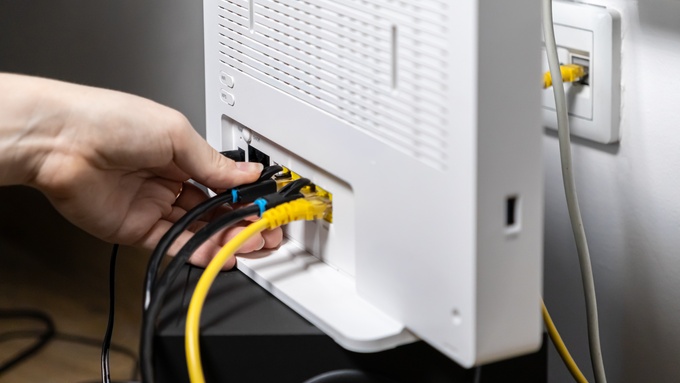
You plug in a shiny new Ethernet cable to your gaming PC and run a speed test. Instead of soaring, the results barely budge. Your downloads still crawl, and your online match still lags when everyone starts streaming.
It’s frustrating because premium cables promise impressive performance on the package. But a cable can’t create speed that the rest of your network doesn’t support. Before spending more on gear, figure out where your connection hits its limit. Keep reading to explore why premium cables can’t fix slow network hardware.
Cables Carry, Not Create
An Ethernet cable moves data between devices. Its category describes signaling performance, not a speed boost for every connection.
Think of a cable as a road between two buildings. A wider road can handle more traffic, but it doesn’t make the vehicles on either end move faster. Similarly, a Cat8 patch cable won’t turn a gigabit connection into a multigigabit one.
You need compatible equipment on both ends to use higher link speeds. Without that hardware, the premium cable simply carries the same connection as a suitable, less expensive cable.
Start With the Network Adapter
Your computer’s network interface controller, or NIC, determines which wired link speeds it supports. Many desktops and laptops offer gigabit Ethernet, while some newer systems support 2.5 Gbps or faster.
If your PC has a 1 Gbps port, it won’t negotiate a 10 Gbps link just because you bought a more expensive cable. The adapter lacks that capability.
Check your motherboard specifications or the model of your USB Ethernet adapter. If you regularly move huge files to a local server, a compatible multigigabit adapter might improve those transfers.
Look at the Switch Ports
An Ethernet switch connects devices within your local network. Every port has its own supported speeds, so the switch can impose a ceiling before data ever reaches your computer.
Imagine connecting a 2.5 Gbps PC to a switch with only 1 Gbps ports. Even with Cat8 cables throughout the room, that link stays at gigabit speed. A faster switch could help, but only if the other devices also support the upgrade.
Read the switch specifications rather than relying on a marketing label. Check which ports support multigigabit speeds.
Don’t Overlook the Router
Your router handles traffic between your home network and the internet. Even a fast local link won’t guarantee fast downloads when the router’s internet port or processing capabilities can’t keep up.
Some older routers have slower Ethernet ports. Others struggle with demanding features such as traffic inspection or certain security services.
Check the router’s actual port speeds and relevant performance specifications. If the device forms the bottleneck, upgrading a patch cable won’t make its processor stronger or give it a faster port.
Your Internet Plan Still Counts
Gigabit hardware can’t turn a 300 Mbps internet subscription into a gigabit service. The provider’s connection sets an upper bound on the speeds you can reach beyond your home.
Internet performance also depends on congestion and the server you’re contacting. A game download may run slowly because the remote service has limited capacity, even while another download performs well.
Compare a wired speed test against the speeds your provider advertises for your plan. If several reputable tests fall short, investigate your modem and router before shopping for an exotic cable.
Wi-Fi Has Different Limits
A premium Ethernet cable won’t erase every wireless problem. Wi-Fi shares airtime among connected devices and competes with obstacles around your home.
A crowded channel or a distant gaming setup can cause inconsistent performance even when your router has a perfectly good wired uplink. Try testing your computer with a direct Ethernet connection to separate wireless issues from internet issues.
If the wired connection performs well, review access point placement and wireless settings. A newer access point may help more than another expensive patch cord.
Fast Downloads Aren’t Low Ping
Gamers know that speed and responsiveness aren’t the same thing. Bandwidth influences how quickly you can download a massive update. Latency reflects how long data takes to travel to its destination and back.
Moving from a healthy Cat6 cable to Cat8 generally won’t slash your ping. The route to the game server and network congestion often play bigger roles. Bufferbloat can also increase latency when uploads or downloads fill a connection.
Try testing ping while your network sits idle, then again during a large upload. If the numbers jump, investigate traffic management and competing demand instead of assuming cable category causes the lag.
Where Cat8 Makes Sense
Higher cable categories still have legitimate uses. Cat8 supports demanding short-distance copper links, including 25 Gbps and 40 Gbps applications under appropriate conditions. Its intended high-speed channel length tops out at 30 meters.
That makes it more relevant to specialized server environments than a typical gaming desk. When deciding if Cat8 cabling is necessary, start with the speeds your equipment can negotiate and the distance between devices.
Cat6A supports 10 Gbps Ethernet over runs up to 100 meters with compatible gear. For many home networks, a well-made Cat6 or Cat6A cable already offers ample capability.
Check the Negotiated Speed
You don’t need to guess whether an Ethernet link runs at the expected rate. Windows displays the connection’s link speed in network settings. Many switches show the negotiated speed through management interfaces or status lights.
If you expect 1 Gbps but see 100 Mbps, investigate. A damaged cable or poorly terminated connector can prevent a faster link. The switch port or adapter could also lack the speed you expected.
Try a known-good cable and a different compatible port. Leave automatic speed negotiation enabled unless your equipment documentation and a qualified technician call for another setting.
Test the Right Connection
An online speed test measures more than your cable. It includes the provider’s network and the path to a remote server.
For local network performance, compare transfers between two capable wired devices or use a trusted local throughput tool. Test one change at a time so you can recognize which component makes a difference.
If local transfers reach the expected speed but internet downloads lag, look beyond your Ethernet wiring. A methodical test beats replacing gear at random.
When New Cables Help
Cables aren’t irrelevant. A crushed cord or damaged connector can cause errors and unreliable links. Excessive length or poor installation can also compromise performance.
Replace suspect cables with properly rated products from reputable manufacturers. Avoid sharp bends and inspect connectors for loose clips or visible damage. For in-wall wiring, use cable and installation practices that meet applicable building requirements.
The goal is reliable performance, not the highest category printed on a flashy package. A sound cable removes one possible obstacle, but it can’t upgrade the electronics at either end.
Upgrade With a Purpose
Understanding why premium cables can’t fix slow network hardware helps you spend your upgrade budget wisely. Faster local backups may justify multigigabit ports on both a computer and a storage server. Better game responsiveness may call for investigating congestion instead.
Map the path your data follows, from your PC through the switch and router to the wider network. Find the first genuine limitation and address it there.
Premium Ethernet cables have their place, but they aren’t a shortcut around slow network hardware. Once you match cables to capable devices, your upgrades can deliver real benefits instead of another disappointing speed test.
Leave a Reply