
Whether you’re binge-watching Stranger Things or playing a round of Baldur’s Gate 3 on your big screen, displaying your computer on your TV screen can be great. Connecting your computer to a TV allows you to enjoy content in a larger, more comfortable setting. With just a few simple steps, you’ll start enjoying your favorite shows, games, and videos on a whole new scale.
Choosing the Right Connection Method
Different setups work for different devices. The most common and user-friendly option is the HDMI cable. It carries both video and audio, offering a reliable, high-quality connection. An HDMI-to-HDMI cable will connect most TVs and computers. However, you may run into a situation where your computer or TV lacks an HDMI port. In that case, other methods like DisplayPort to HDMI adapters, VGA cables (for older TVs), or even wireless streaming devices like Chromecast might be the solution you need. Before you start buying cables or digging through your garage for loose cords, consider your device compatibility and how much effort you’re willing to put into setup.
Setting Up Your Devices
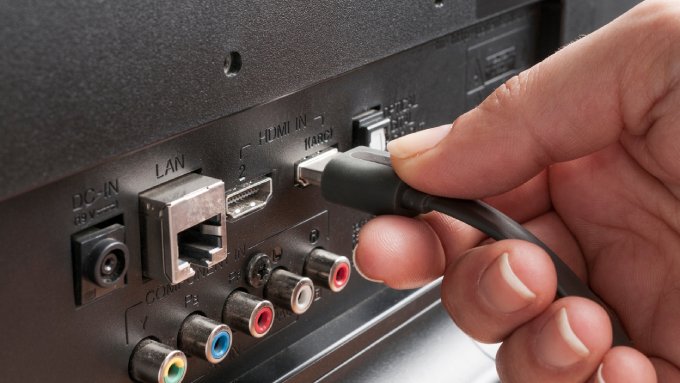
Start by ensuring both your TV and computer are on. Plug one end of the HDMI cable into your computer and the other end into your TV’s HDMI port. Once connected, switch your TV’s input source to the HDMI port you’re using. The display should mirror your computer screen. You may need to troubleshoot some common HDMI cable issues during this process, but generally, the actual connection should be simple once you find the proper cable.
Adjusting Your Display Settings
Even when the connection is secure, your screen might not look the way you want it to. Open your computer’s display settings to adjust the resolution and aspect ratio to fit your TV. On Windows, you can manage this feature through the Display Settings menu. On Mac, use the System Settings under Displays. Most TVs allow you to adjust aspect ratios, too. Experiment with these settings on both devices to find the perfect match.
Exploring Wireless Options
Not everyone enjoys the hassle of cables. Wireless alternatives like Apple’s AirPlay, Chromecast, or Miracast can achieve the same result without extra cords. These options are ideal if your devices support them and you want a clean, clutter-free setup. Apps like Steam Link even allow you to stream your favorite games wirelessly from your computer to your TV, bringing gaming to life on the big screen.
A New Way To Enjoy Your Content
The experience of displaying your computer on your TV screen transforms how you watch and play. From binge-worthy shows to PC games brimming with detail, your TV becomes more than just a screen. Gather the right tools, tweak a few settings, and you’re all set for a dynamic, immersive way to enjoy your content.
Leave a Reply